
Every person who touches ClinyPal needs their own sign-in, even if sharing one looks easier at the front desk. It's the only way the change history can say who did what, and it keeps one person's lost phone from locking out the whole team.
Who needs a user
Everyone who signs in to ClinyPal needs their own user, with their own email and password. Sharing one sign-in between the front desk looks easier, but it means the change history and the access log can't say who did what, and one person's sign-in code or passkey locks everyone else out. Add each person separately; users who aren't practitioners don't count toward your plan.
When you add someone you make two separate choices: whether they're a practitioner, meaning patients can be booked with them, and which security role they have, meaning what they can open and change. A physiotherapist who also runs the desk is a practitioner with the Administrator or Power Receptionist role; a receptionist who never treats anyone is not a practitioner, with the Receptionist role.
Add a user
Open Settings, then Users & Practitioners, and select Add user.
Decide whether this user is a practitioner
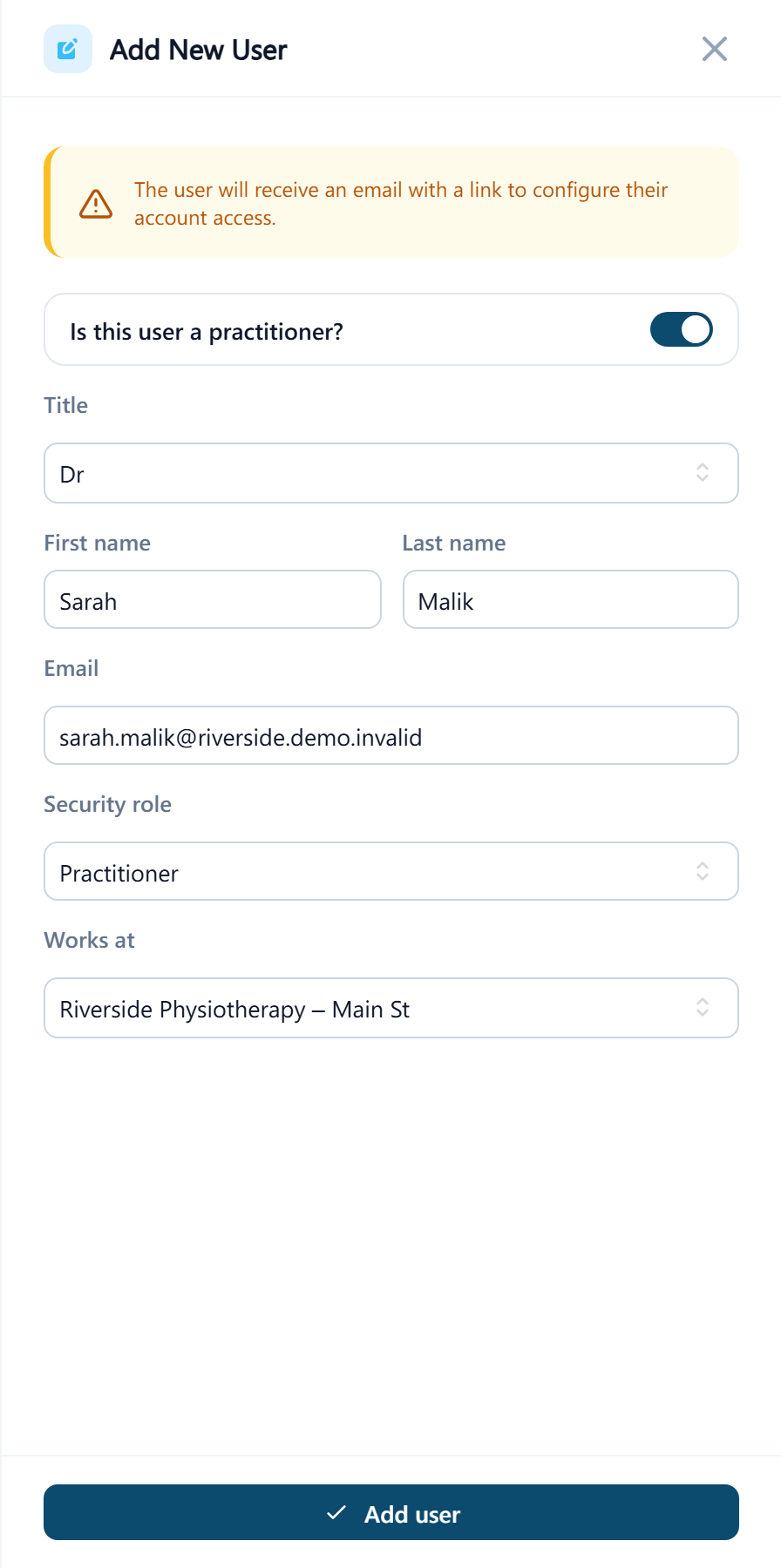
Switch on Is this user a practitioner? for anyone patients can be booked with. Each active practitioner uses one of your plan's seats; other users don't use a seat.
Enter their title, name and email
The email must not already belong to a ClinyPal user anywhere, or you'll see Email address is already taken. The invitation goes to this address, so check it before saving.
Choose a Security role
Administrator, Practitioner, Power Receptionist, Receptionist, Bookkeeper or Scheduler. The role decides which pages and settings they can open and what their dashboard shows. In short: Administrator sees and changes everything; Practitioner is built around their own patients, notes and telehealth; Receptionist runs the calendar, patients, invoices and payments; Power Receptionist adds voiding invoices, refunds, deleting patients, data import and export, and the appointment and patient settings; Bookkeeper is invoices, payments, expenses, products and the money reports; Scheduler is the calendar, waitlist and appointment settings. See Roles and permissions for the full list.
Choose where they work under Works at and select Add user
This is the location they work at and, until you widen it, the only one whose appointments and reports they'll see.
The user appears in the list right away, marked as not yet having accepted their invite, and the invitation email is sent. If it couldn't be sent, you see User added, but the invitation email couldn't be sent. Open the user and select Resend invitation email.
Widen or narrow what they can see
Two settings on the user's page, not on the add form, control how much of the clinic they see. Open the user from the list to change them.
- Can also see other locations: off, they see only where they work; on, they see appointments, reports and data at every location. A new user starts with it off. A practice manager who covers two sites needs all locations; a receptionist at one site usually doesn't.
- Patient record access (practitioners only): All patients in the clinic or Only patients assigned to them. A new practitioner starts with all patients. Choose the narrower option for a visiting practitioner who shouldn't browse the whole patient list.
Neither setting applies to the main owner, who always sees everything.
What the new user does
They receive an email titled Riverside Physiotherapy: You've been invited — verify your email (with your business name). Selecting Verify your email address confirms the address and opens a page headed Set your password. Once they've chosen one, they sign in with their email and that password. If your clinic requires two-factor authentication, they set it up during that first sign-in; see Two-factor authentication.
Practitioners need a free seat
A new receptionist, bookkeeper or scheduler is active as soon as they verify their email. A new practitioner is active as soon as they verify, if your plan has a seat free. The seats in use are shown as Practitioner seats on the dashboard, for example 3 / 3, and on the subscription page.
When every seat is taken, the practitioner's email is confirmed but they can't sign in yet. The sign-in page tells them Your clinic has no free practitioner seat right now, so an admin needs to activate your account before you can log in. To let them in:
- Free a seat, either by deactivating a practitioner who has left, or by moving to a plan with more seats under Subscription.
- In Users & Practitioners, select Activate on their row. If the seat is still taken you'll see Active seat limit reached. Your plan allows N active practitioner(s) at a time.