
A password alone protects a clinic's records about as well as a key under the mat. An authenticator app adds a code only your phone can produce, and it takes about two minutes to set up.
What it changes
With two-factor authentication on, every sign-in asks for the current 6-digit code from an authenticator app on your phone after your password. A stolen or guessed password is no longer enough on its own. It also replaces the emailed sign-in codes: once the app is set up you're asked for its code instead, on every device, unless you've chosen to remember that device for 30 days.
Any authenticator app works: Google Authenticator, Microsoft Authenticator, Authy, 1Password and others. Install one before you start.
Turn it on
You can only set this up for yourself, from your own user. If your clinic has made it compulsory, you'll be walked through the same steps on your next sign-in instead, under the heading Set up two-step verification, and can't sign in until it's done.
Open Settings, then Users & Practitioners, and open your own user
Under Security, find Two-factor authentication and select Enable, then Set up two-factor authentication.
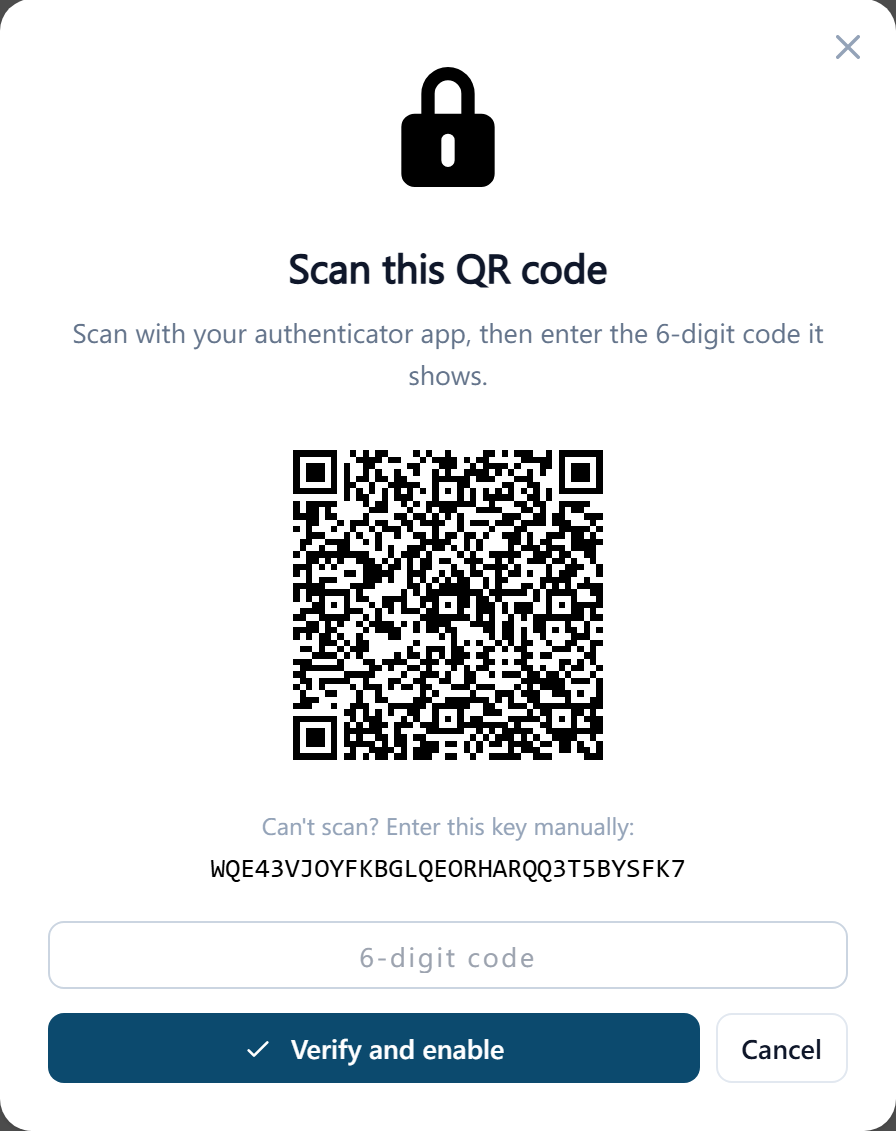
Scan the QR code with your authenticator app
The app adds an entry named ClinyPal with your email. If the camera can't scan it, add the entry by hand in the app using the key shown under Can't scan? Enter this key manually.
Enter the 6-digit code the app now shows and select Verify and enable
If you see That code didn't match. Please try again., wait for the app to show the next code and enter that one; codes change every 30 seconds and the one you typed may have expired while you were typing.
Save your backup codes
Ten single-use codes are shown once. Store them in a password manager or print them and keep them with your other important documents. They are the only way back in if you lose your phone.
Sign in with it
After your password, the page Two-step verification asks for the Authenticator code. Open the app, type the 6 digits for ClinyPal and select Verify. Tick Remember this device for 30 days on your own devices so you're only asked monthly there.
If your phone isn't to hand, select Use a backup code and enter one of the saved 8-character codes instead. Each backup code works once; cross it off. Use your authenticator app switches back. A wrong code shows Invalid code. and you can try again.
Lost your phone, or used all the backup codes
If you still have any backup code, sign in with it, then open your user, select Manage under Two-factor authentication and either Regenerate backup codes, or Disable it and set it up again on the new phone.
If you have no code at all, an administrator can open your user and select Reset next to Two-factor authentication. That removes the authenticator from your account so you can sign in with your password alone, and then set it up again. Nobody can reset the main owner's authenticator this way, and nobody can reset their own; the owner should keep backup codes somewhere safe.
If your clinic requires two-factor authentication, Disable isn't offered. After a reset by an administrator you'll be asked to set it up again on your next sign-in.
Time limits and lockouts
- First-time setup allows 15 minutes. If you set the app up but the time runs out, sign-in says Your authenticator app is set up. Sign in again to finish.; sign in again and enter a code.
- A code screen left open too long ends with This sign-in step timed out. Please sign in again.
- Too many wrong codes: Too many failed attempts. Use a backup code, or ask your clinic admin to reset two-factor authentication (clinic owners: contact ClinyPal support). An administrator resets it with Reset on the user's page; for the clinic owner, ClinyPal support resets it after confirming who is asking.
- When the clinic requires two-factor authentication, it applies to people who sign in with a passkey or on a browser ClinyPal remembers too: they set up an authenticator once, and after that a passkey still signs in without a code.