
Lunch, leave, a course, a meeting: anything that isn't patient time is a block. Blocks stop online booking offering the slot and tell reception why the column is empty.
Add a block
An unavailable block marks time a practitioner can't see patients: vacation, a meeting, a course, a lunch that moves around. It's drawn on their column with its type's color and name, online booking never offers the time, and staff who try to book over it are warned. Blocks are per practitioner; for a day the whole clinic is shut, use a closure instead.
Open New Block
In Day view, select Add Block, then the empty time in the practitioner's column where the block should start. The form opens with that practitioner, date and time filled in.
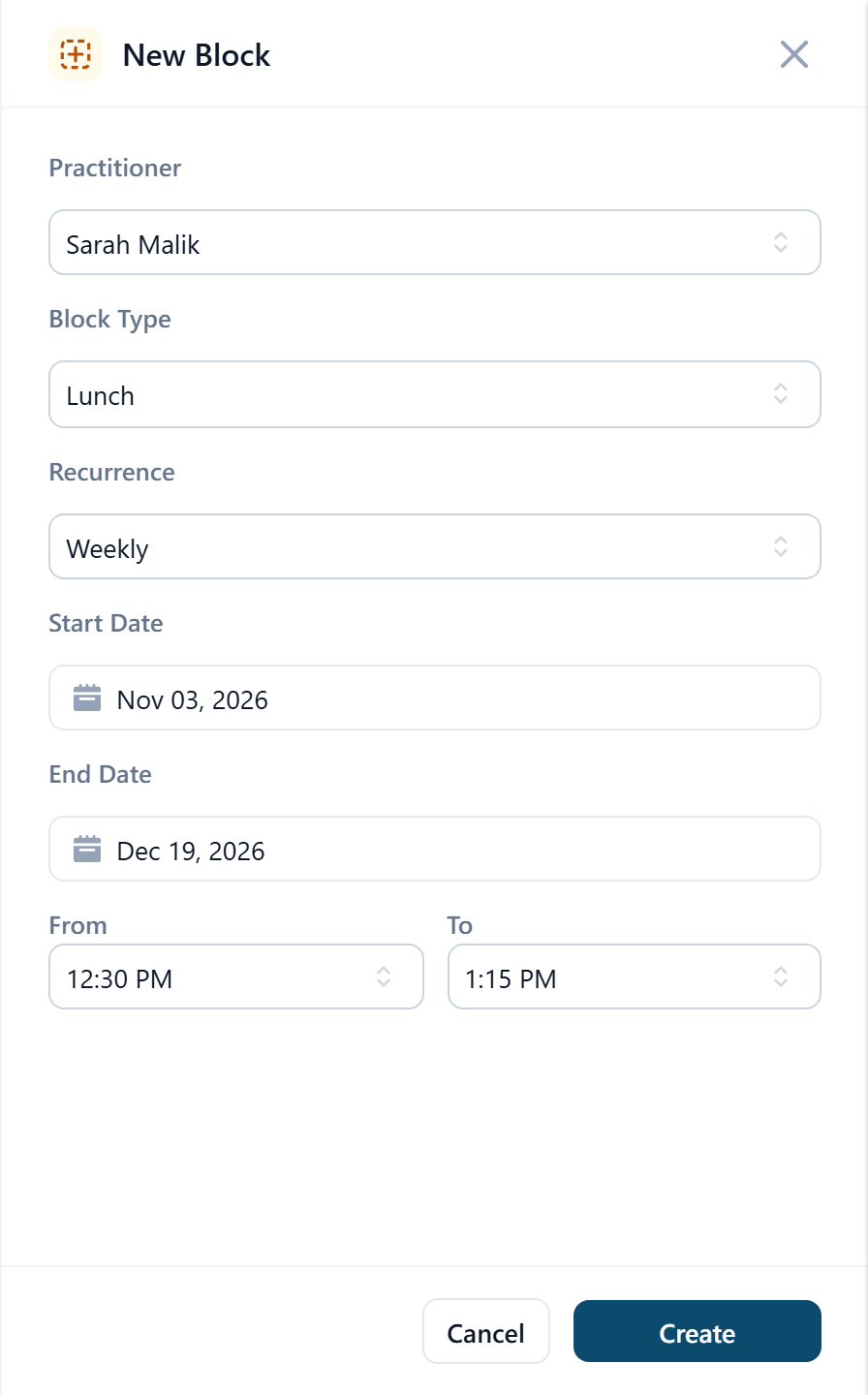
Choose the Practitioner and the Block Type
The type gives the block its name and color, and its default length. Types are set up under Unavailable Blocks in Settings.
Set Recurrence
One-time for a single block with a Date. Daily, Weekly, Bi-weekly or Monthly for a repeating one, with a Start Date and an End Date; a series always needs an end, so a standing lunch break can't run forever by accident.
Set From and To, then Save
Every occurrence is created now and appears on the calendar.
A monthly block set for the 29th, 30th or 31st falls on the last day of shorter months rather than skipping them.
Add several blocks quickly
In Day view, Add Block switches the calendar into block mode, marked Adding Block. While it's on, each empty time you select opens a new block for that practitioner and time instead of an appointment, which is the quick way to mark a practitioner out for a scattered half day. Select Cancel on the marker to go back to normal booking.
Edit or delete
Open the block to change its type, date or times. For a one-off block, Delete removes it. For a repeating block you can delete the occurrence you opened on its own, or Delete all to remove the whole series, past occurrences included. Changing the type or times of a repeating block changes every occurrence in the series. To change one day only, use Delete this on that occurrence and add a one-time block in its place.
Adding a block doesn't move or cancel appointments already booked in that time; they stay on top of it. Check the column after adding leave and reschedule what's underneath.