
Taking a payment is a few clicks, and recording the method correctly is what makes the register balance at close. Account credit and part payments are handled on the same screen.
From the invoice
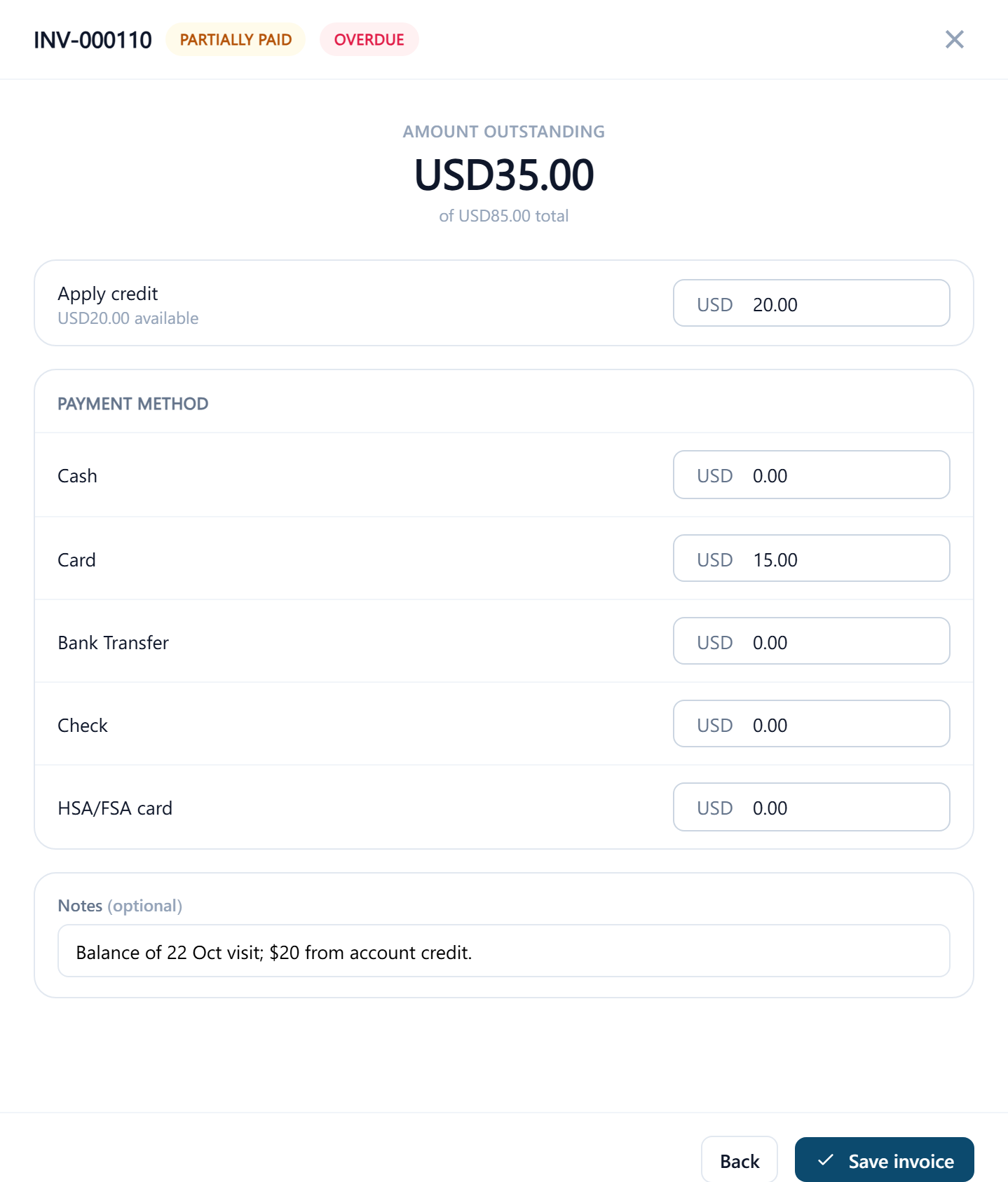
Open the invoice and select Go to payment. The Amount outstanding is shown at the top.
Apply credit, if the patient has any
Apply credit shows how much account credit is available; enter the amount to use and it comes off what's left to pay.
Enter the amount against each payment method
Every active payment type is listed: Cash, Card, Bank transfer and whatever else the clinic has set up. A patient paying $50 by card and $35 cash gets an amount against each; the heading notes it's split across multiple.
Add a note if useful, and select Save invoice
A confirmation lists the credit applied, each method and the total tendered, and says whether the invoice will be marked Paid or Partially Paid.
Confirm
The invoice becomes Paid or Partially paid, and the payment appears under Payment history on the invoice and on the Payments page.
If the amount tendered is more than the invoice needs, the confirmation says The extra will be added to this patient's account credit, not applied to this invoice. Nothing is lost, and the credit is offered on their next payment. See Account credit.
From the Payments page
Use Add Payment on the Payments page when a patient pays several invoices at once, or pays in advance. Choose the patient, and Apply to invoices lists every unpaid invoice with its number, date and amount due. The amounts are filled in according to the clinic's payment allocation setting, oldest first by default, and you can change them. A patient with no unpaid invoices can still be taken a payment: the whole amount becomes account credit, as the form says. The payment methods, credit and confirmation work as above, and the button names the total, for example Record $85.00 payment.
Payments that arrive on their own
Deposits from online booking and payments made through a payment link are recorded without anyone at the desk, against the appointment's or the link's invoice, with the card provider as the payment method. Refunds made in the provider's own dashboard are recorded too, from the provider's notification. These show on the Payments page like any other.
A recorded payment can't be edited. If one was taken wrongly, void it and record it again; see Void a payment.