
Most invoices come from an appointment and need no typing; the rest you build by hand. Either way, what's on it and when it's issued decide what the patient owes and what reports show.
Three ways to start
- From an appointment. Open the appointment on the calendar and choose to invoice it. The invoice opens with the patient, practitioner and the appointment type's billed items already on it, at the prices fixed when the visit was booked. An appointment can only have one invoice; trying again answers An invoice already exists for this appointment.
- From the Invoices page. Select New invoice, search the patient under New invoice for, and pick them.
- From the patient's record. On their Billing section, under Invoices, select the new invoice link.
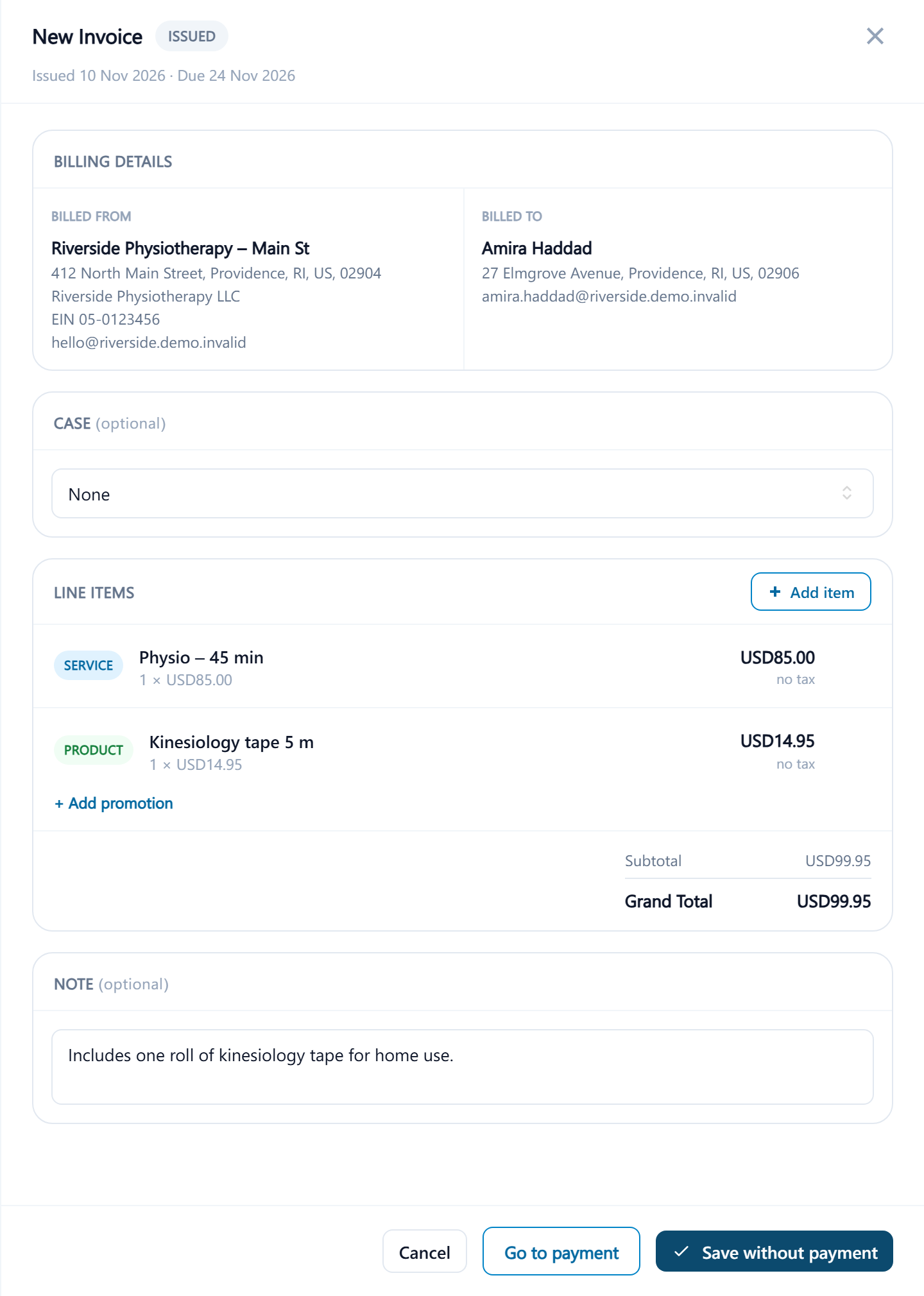
Whichever way, the invoice opens as New Invoice and gets its number when you first save it, in the format set under Invoice Settings, such as INV-000142. Invoices belong to the location they were raised at, which is the location you're viewing.
Add what's being charged
Open the line item builder and choose Service, Product or Free text
Search your billable services or products by name; each shows its price. Free text is for a one-off charge that isn't in the catalog, with a Description and a price.
Set Qty, Unit price and Discount %
The unit price is filled in from the catalog and can be changed on this invoice only. If the patient has a concession and the service has a concession price, that price is used and the concession's name is shown on the line. A discount must be between 0 and 100 percent.
Select Add to invoice
The line appears with its quantity, price, discount and tax. Select a line to change it, or remove it with the cross beside it. A product line reduces stock when the invoice is saved; if there isn't enough, you're warned but the invoice still saves.
Add a promotion, if one applies
+ Add promotion lists the clinic's promotions that are running today. One that doesn't apply to this invoice is shown but can't be chosen, with the reason, such as being limited to products when the invoice has none.
Choose a Case, if the patient has one open
The invoice then counts toward the case's spend. A closed case can't be chosen: That case is closed — reopen it before adding new invoices.
Add a note, then save or Go to payment
The note is printed on the invoice; a patient's standing Invoice note from their Billing section is filled in here already. Go to payment opens the payment step, and the invoice and its payment are saved together when you confirm.
Totals show the subtotal, tax, any promotion and the total, with tax added on top or included in prices according to the clinic's tax method. Every line needs a name and a quantity of at least one.
Editing later
An issued or partially paid invoice can be reopened and its lines changed, and its number stays the same. The new total can't be less than what has already been paid or credited on it; you're told to refund the difference first. Once it's fully paid, though, it's locked, the same as one that has been voided, written off or refunded, and one that has a credit note can't be edited at all: Refund the rest or raise a new invoice instead. If a colleague saved the same invoice while you had it open, your save is refused and you're asked to reload. Every edit is kept in the invoice's change history.