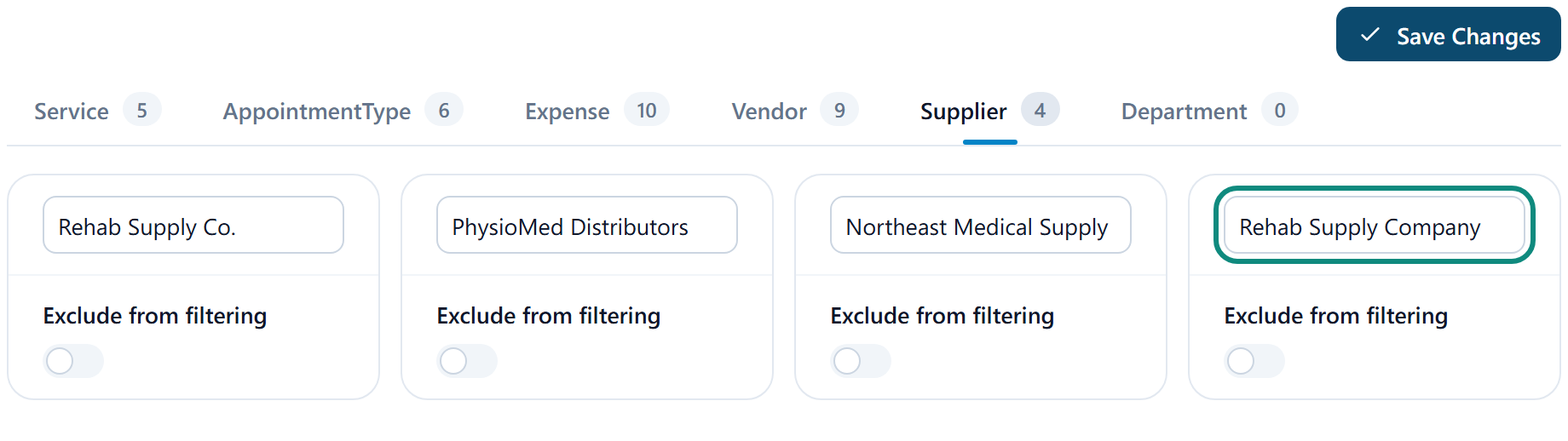
Vendors, departments and categories grow as people type them, and typos grow with them. This page is where you merge and tidy the lists.
What they are
Some fields suggest values you've typed before rather than fixed lists: Suppliers and Vendors on expenses and products, Departments on practitioners, Services and Expenses categories, and Appointment Types groupings. Autocomplete labels are added automatically the first time a value is used. Over time typos and near-duplicates creep in, such as Physio Supplies and Physio supplies, and this page is where you clean them.
Tidy a list
Open Settings, then Autocomplete Labels
Pick the field. Its values are listed with their Name.
Rename, merge or hide
Edit a name to correct it. A name can only be used once in each list, so renaming one entry to match another won't save; there's no merge, and records keep the entry they had. Exclude from filtering keeps a value on existing records but stops suggesting it and takes it out of report filters.
Save Changes
All fields have been updated successfully.